


Soracom provides error logging for configured services that can be used to diagnose errors with configuration and help you troubleshoot your deployment.
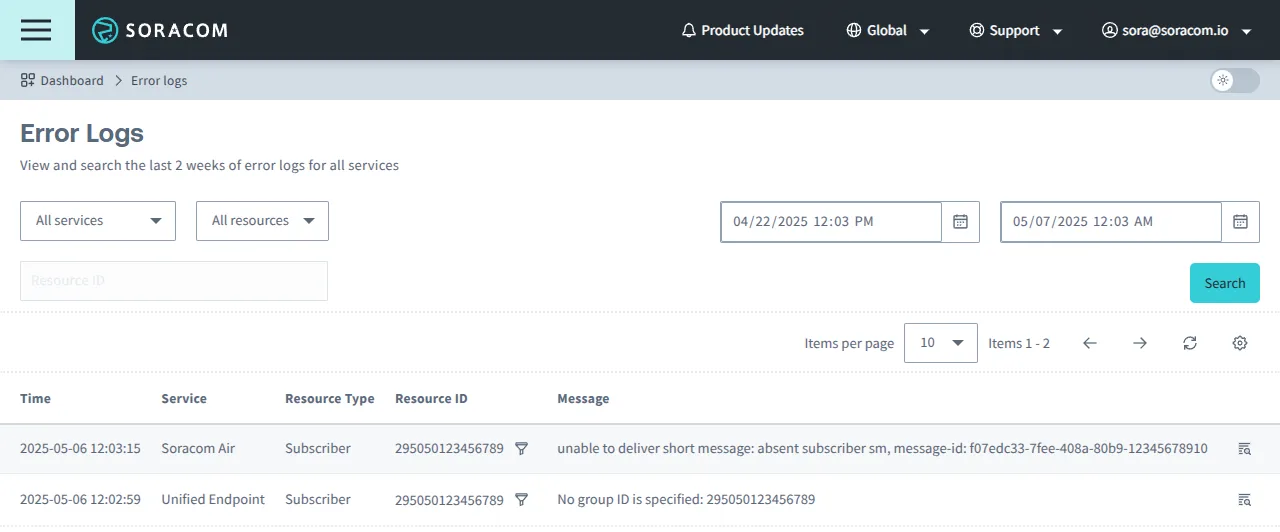
Viewing Error Logs
- Sign in to the User Console . From the Menu, open the Error Logs screen.
- Specify the time frame you would like to view error logs for using your local browser time.
- Optionally, use the dropdown menus to filter the errors table by service and by subscriber, device, or Sigfox device. To filter for a specific resource, enter its Resource ID. Click the icon next to a resource to apply that filter.
Error logs will be displayed in a table with the following columns:
| Column Header | Description |
|---|---|
| Time | The time the error occurred. This timestamp is provided in your local browser time. |
| Service | The service that was the source of the error. |
| Resource Type | The type of resource that generated the error. Either Subscriber, Device, or Sigfox Device. |
| Resource ID | The resource ID of the resource that generated the error. |
| Message | The verbose error message describing the error cause. |
The columns displayed can be customized by clicking the icon.
The error logs page does not refresh to display new errors automatically. To refresh the page to view new errors, click the icon.
Supported Services
The following services send errors to the error logs. Explanations and troubleshooting steps for specific errors can be found in their respective service's error documentation page:
- Soracom Air
- Soracom Beam
- Soracom Funnel
- Soracom Harvest
- Soracom Napter
- Soracom Orbit
- Unified Endpoint
Limitations
Error logs are subject to the following limitations:
- Error Logs can only be viewed for the last two weeks.
- When using the Soracom API, HTTP status codes such as
403or404may be returned in the error logs, but not all API errors that occur will be displayed in the error log. Detailed information about Soracom API calls can be obtained by subscribing to the Audit Logs feature.
Programmatic Usage
You can retrieve error logs programmatically using the Soracom API or Soracom CLI.
Error logs can be retrieved for a specific time period by service and by subscriber, device, or Sigfox device. For more information on filtering, refer to the API documentation.
[block=api]
Soracom API
To access the Soracom API, first use the auth API to obtain an API Key and Token. Refer to the API Usage Guide for instructions on how to use the API Key and Token in API requests.
Then, use the getLogs API to retrieve logs:
[ui-tabs theme=code] [ui-tab title=Global]
curl -X GET \
|  -H 'X-Soracom-API-Key: <MY-API-KEY>' \
|  -H 'X-Soracom-Token: <MY-TOKEN>' \
|  https://g.api.soracom.io/v1/logs
[/ui-tab] [ui-tab title=Japan]
curl -X GET \
|  -H 'X-Soracom-API-Key: <MY-API-KEY>' \
|  -H 'X-Soracom-Token: <MY-TOKEN>' \
|  https://jp.api.soracom.io/v1/logs
[/ui-tab] [/ui-tabs]
If no filters are applied, the API will return all logs for all services in the last 14 days. The API will paginate at 10 logs. For more information on handling pagination, refer to the API Usage Guide.
[/block]
[block=cli]
Soracom CLI
To use the Soracom CLI, you must first configure it to authenticate with your account information, authorization key, or SAM user credentials.
Then, use the logs get command to retrieve logs:
[ui-tabs theme=code] [ui-tab title=Global]
soracom logs get[/ui-tab] [ui-tab title=Japan]
soracom logs get[/ui-tab] [/ui-tabs]
For more information about available filters and flags, use the logs get help command:
[ui-tabs theme=code] [ui-tab title=Global]
soracom logs get help[/ui-tab] [ui-tab title=Japan]
soracom logs get help[/ui-tab] [/ui-tabs]
[/block]